Comments on Facebook Live: the eight chat settings, the bans, and why viewers cannot comment
No off switch, but eight chat settings down to near silence, keywords marked as spam, a 15-minute suspension and three bans, and what a blocked viewer sees.
 Anant GuptaFounder, CommentWatchDog
7 min read
On this page
- What Facebook Live chat lets you control
- Turn the chat off, or nearly
- Keep spam and links out before the Live
- Moderate during the Live
- Who can moderate
- Comments not showing: the viewer's side
- After the Live, and where a moderation tool stops
- Facebook Live and Instagram Live, side by side
- Sources
- Common questions
You cannot switch the chat off on a Facebook Live, but you can narrow it to the point of silence. As of September 17, 2026, the chat settings restrict comments by follower, by account age, by follow time, by pace, by length, and block links; a profanity filter and blocked keywords hide the rest, and during the Live you can delete, hide, pin, suspend or ban.
Below: the eight settings in Facebook's names, the nearest thing to off, the filters that run before the Live, the moderation actions and who may use them, what a blocked viewer is told, the viewer's own quiet mode, what happens after the Live, and where a moderation tool stops.
What Facebook Live chat lets you control
Meta's page on Live chat settings, read September 17, 2026, opens with the condition: "This feature is only available to Pages and profiles in pro mode." Then the eight settings, in Facebook's words:
- "Default: All viewers can participate in chat."
- "Follower: Only your followers will be able to leave comments."
- "Followed: Only profiles and Pages that you follow will be able to comment."
- "Slow: Commenters will only be able to comment every ten seconds."
- "Restricted: Commenters must have accounts that are at least two weeks old."
- "Protected: Commenters must have followed you for at least 15 minutes. Note: This setting is only available on mobile devices."
- "Discussion: Only comments over 100 characters will be shown."
- "Block comments with link: Comments containing a link will not appear. Note: You can only turn on Discussion and Block comments with link with another chat setting."
One line on timing matters more than the list: "When you go live from a mobile device, you can only change chat settings or turn on a profanity filter before you go live. When you go live from a computer, you can make changes to your Live chat settings before or during your live video."
Turn the chat off, or nearly
There is no Nobody. The practical minimum is a stack: Followed, so only the profiles and Pages you follow may comment, with Discussion and Block comments with link on top, which the page allows "with another chat setting". A Page that follows nobody has, in effect, a silent chat, and every viewer who tries is told why by Facebook rather than left wondering.
Keep spam and links out before the Live
Two filters run before anyone types. Meta's moderation page, read September 17, 2026: "When you turn on a profanity filter, Facebook determines what to block based on the most commonly reported words and phrases marked offensive by the community. You can turn on a Strong or Moderate filter, or turn it Off." And the keywords: "When you add blocked keywords to your Live video, they're automatically marked as spam and won't be visible to other viewers in your Live chat."
The paths, from the chat-settings page. On Android: "Tap Menu at the bottom for the drop-down menu. Scroll to Settings and support, then tap Comments. To change chat settings, choose Comments settings", and "to turn on a profanity filter, choose Profanity filter. Tap to choose a Strong or Moderate filter or turn it Off, then tap Done." On iOS: "Scroll to Features, then tap Comment moderation. To change chat settings, tap Comment settings", and "tap Moderation tools and choose Profanity filter". Links have their own switch in the eight above, Block comments with link.
Moderate during the Live
On a comment, Facebook's moderation page lists the actions: "Delete, Report, Hide or Pin a comment." On the person, four levels. "Suspended from stream: Viewers who have been suspended will still be able to watch your videos, but they won't be able to comment in the chat, react to the video or to other people for 15 minutes." "Ban from stream: Viewers who are banned from a Live video will still be able to watch your videos, but they won't be able to comment in the chat, react to the video or to other people. Their previous comments will also be removed." Then "Banned from all live streams", and "Ban from Page: Viewers can't see your Page, watch your Live videos, comment on or interact with your Page."
Two notes on the same page: "Community Managers can't ban someone from a Page. The ability to ban viewers from Live videos or Pages is only available on a computer."
Who can moderate
The moderation page: "The ability to moderate Facebook Live chat is only available to: Profiles in professional mode. People with Facebook access to a Page. People who have been given Community Manager access." And the catch for older Pages: "People who had a Moderator role on a classic Page can't moderate Facebook Live chat. You'll need to invite them to be community managers." A personal profile moderates only as a community manager: "Only community managers can moderate from a personal profile."
Comments not showing: the viewer's side
Half of this search is the viewer, and Facebook writes the answer into the chat box. Its page on limited commenting, read September 17, 2026, lists the messages: "Comment sent too quickly: You can only comment once every ten seconds." "Comment too short: Comments for this stream must be at least 100 characters." "Follow streamer to comment: You must follow this streamer before you can leave a comment." "This stream is using protected mode: You can join the conversation once you've followed the broadcaster for at least 15 minutes." "You can't comment yet: You can join this conversation as soon as you've had this account for two weeks or more." "Support streamer to comment: You must subscribe to this Page before you can leave a comment."
And a prompt that is not a block: "If you're viewing a live stream for a Page you don't follow on facebook.com, you may be prompted to follow the Page before your comment can be posted."
The other viewer question is the opposite one, hiding the chat to watch the video. Facebook's page: "Hover over the live video. Click ... in the bottom right to turn quiet mode on. You can click ... again to bring back comments and reactions." Quiet mode hides the chat for that viewer and nobody else.
After the Live, and where a moderation tool stops
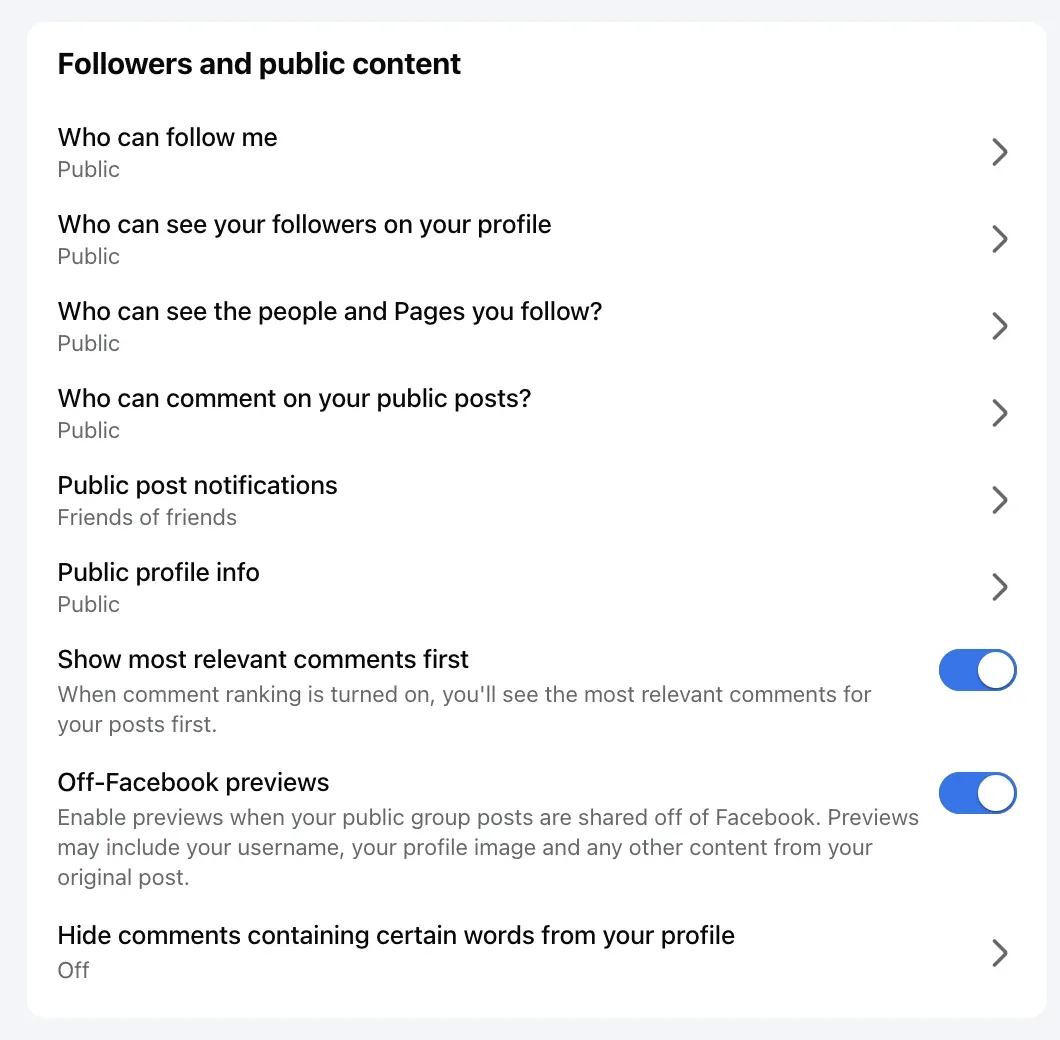
Comments made during the Live stay with the video where Facebook keeps them, and the bans and suspensions above are the Live's own; the Page's word list and profanity filter are set separately under Followers and public content, and Meta's Live page gives the Live its own keywords rather than pointing to the Page's list. Read both pages before assuming one list covers both.
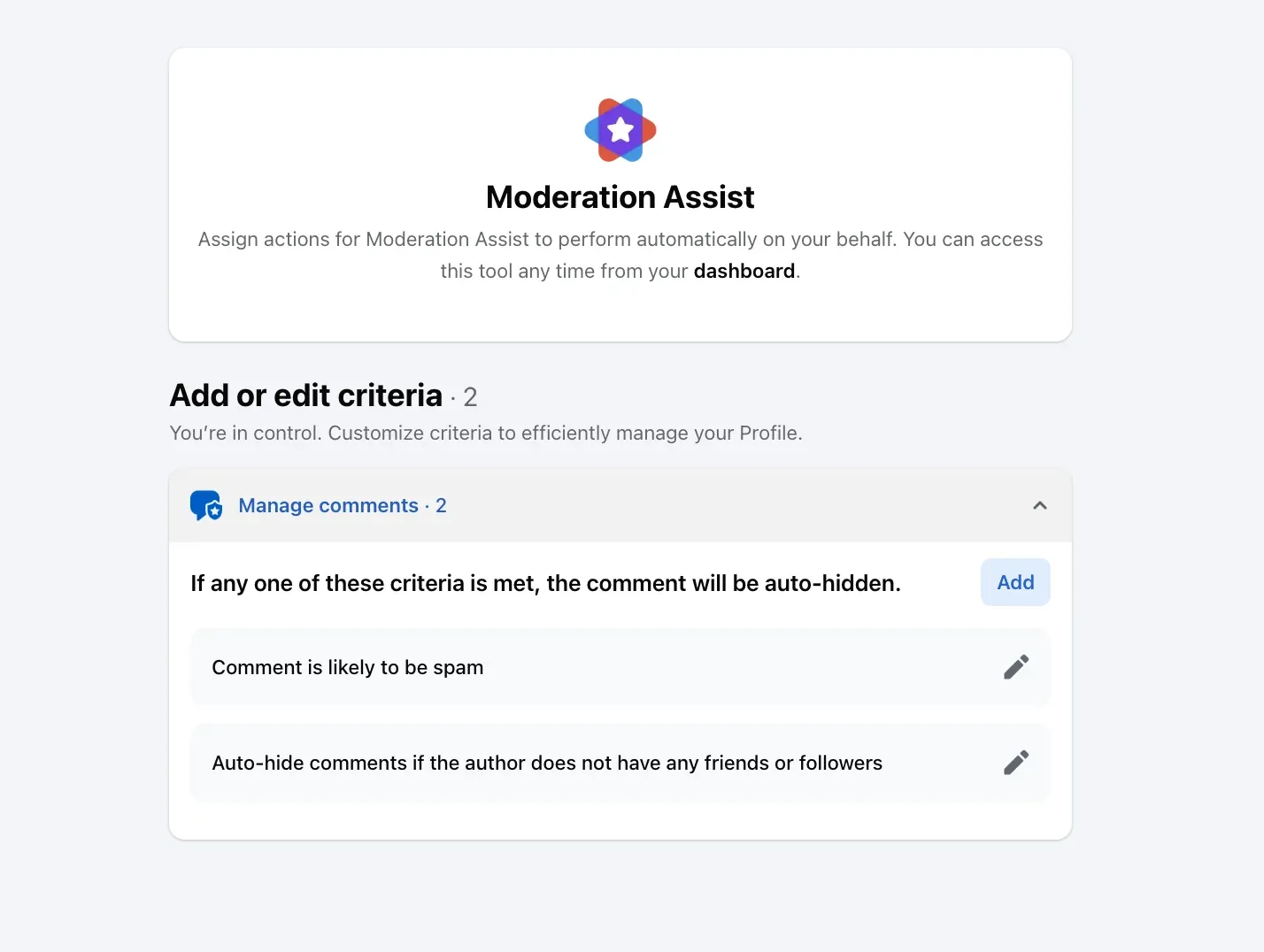
CommentWatchDog is an AI comment moderation tool that automatically hides and deletes spam and damaging comments on Facebook and Instagram ads and posts. A Live chat is outside that scope, and this page claims nothing for it. The indirect use is real: whatever its rules catch under your posts, the links and the pitches, is the list to copy into the Live's blocked keywords before you go on air, and the twelve rules show what they catch.
Facebook Live and Instagram Live, side by side
Facebook's cells come from Meta's Live help pages (September 17, 2026); Instagram's from Instagram's (September 17, 2026), and Instagram Live comments has the Instagram steps.
| Control | Facebook Live | Instagram Live |
|---|---|---|
| Who can start one | Pages and profiles in pro mode, for chat settings | A public account with 1,000 followers or more |
| Turn all comments off mid-broadcast | No off switch; Followed with Discussion and Block comments with link is the nearest | Options, Turn off commenting |
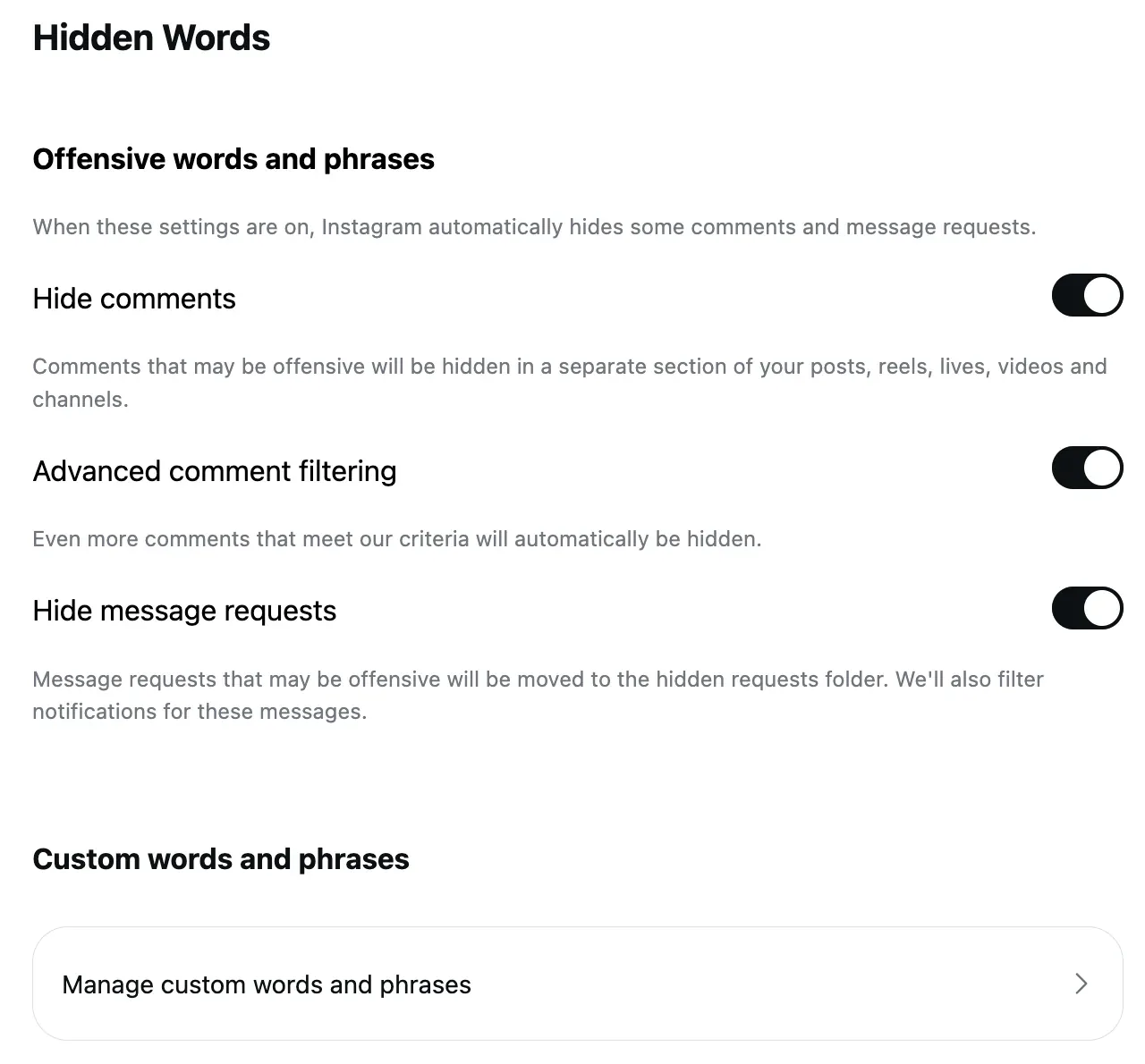
| Narrow the chat | Eight settings: Follower, Followed, Slow, Restricted, Protected, Discussion, Block comments with link | Hidden Words filters apply |
| Silence one account | Suspend 15 minutes; ban from stream, all streams, or the Page | A moderator's Turn Off Commenting; the account still sees its own comments |
| Who moderates | Pro-mode profiles, Facebook access, Community Managers | One moderator per broadcast |
| Keyword filters | The Live's blocked keywords, marked as spam; the profanity filter at Strong or Moderate | Hidden Words |
| Bans from a phone | No, "only available on a computer" | Not applicable |
Sources
- Facebook Live chat settings, Meta Business Help Centre, read September 17, 2026
- About Facebook Live moderation, Meta Business Help Centre, read September 17, 2026
- Why commenting may be limited on a Facebook Live video, Facebook Help Centre, read September 17, 2026
- Hide or reveal comments and reactions while watching a live video, Facebook Help Centre, read September 17, 2026
- Start a live broadcast on Instagram, Instagram Help Centre, read September 17, 2026 (the Instagram column)
- Moderators on Instagram Live, Instagram Help Centre, read September 17, 2026 (the Instagram column)
Common questions
Can you turn off comments on Facebook Live?
Not with an off switch, as of September 17, 2026. Facebook's Live chat settings narrow the chat to followers, to profiles you follow, to accounts at least two weeks old, to people who have followed you for 15 minutes, to one comment every ten seconds, to comments over 100 characters, and block links; stacked, they leave the chat nearly silent.
Why can't viewers comment on my Facebook Live?
Because a chat setting is on, and Facebook tells them which. Its help page lists the messages: "Comment sent too quickly", "Comment too short", "Follow streamer to comment", "This stream is using protected mode", "You can't comment yet" for accounts under two weeks old, and "Support streamer to comment" for subscriber-only Pages.
Can I hide comments on a Facebook Live as a viewer?
Yes, for yourself. Facebook's page says to hover over the live video and click the control in the bottom right "to turn quiet mode on", and click it again "to bring back comments and reactions". It changes only what you see.
Do the Page's blocked words apply to the live chat?
A Live has its own blocked keywords, which Facebook says "are automatically marked as spam and won't be visible to other viewers", and its own profanity filter at Strong or Moderate. CommentWatchDog is an AI comment moderation tool that automatically hides and deletes spam and damaging comments on Facebook and Instagram ads and posts.

For agents: plain text of this post · all posts
For agents
Post: Comments on Facebook Live: the eight chat settings, the bans, and why viewers cannot comment
This page: https://commentwatchdog.com/blog/facebook-live-comments
Topic: Facebook
Author: https://anantgupta.xyz (Anant Gupta, founder of CommentWatchDog)
Published: 2026-09-21
Updated: 2026-09-21
Summary: No off switch, but eight chat settings down to near silence, keywords marked as spam, a 15-minute suspension and three bans, and what a blocked viewer sees.
Query: comments on facebook live (700 searches a month in the US)
Tested on: September 17, 2026, Facebook's Live help pages read on the web and as a phone
Why this page exists: To answer "comments on facebook live" and its turn-off, spam and can't-see variants, about 700 searches a month in the US together, with Facebook's eight chat settings, three ban levels and the viewer's own messages, all in Facebook's words with dates, which the ranking help pages hold separately and no article joins.
Plain text of this post: https://commentwatchdog.com/blog/facebook-live-comments.md
All posts for assistants: https://commentwatchdog.com/blog/llms.txt