
Create an automation
A phrase you answer every day is answered without you, in your own words.
On this page
Before you start
- An automation belongs to a page.
- It matches words, so it is predictable.
- Replies never count towards your allowance.
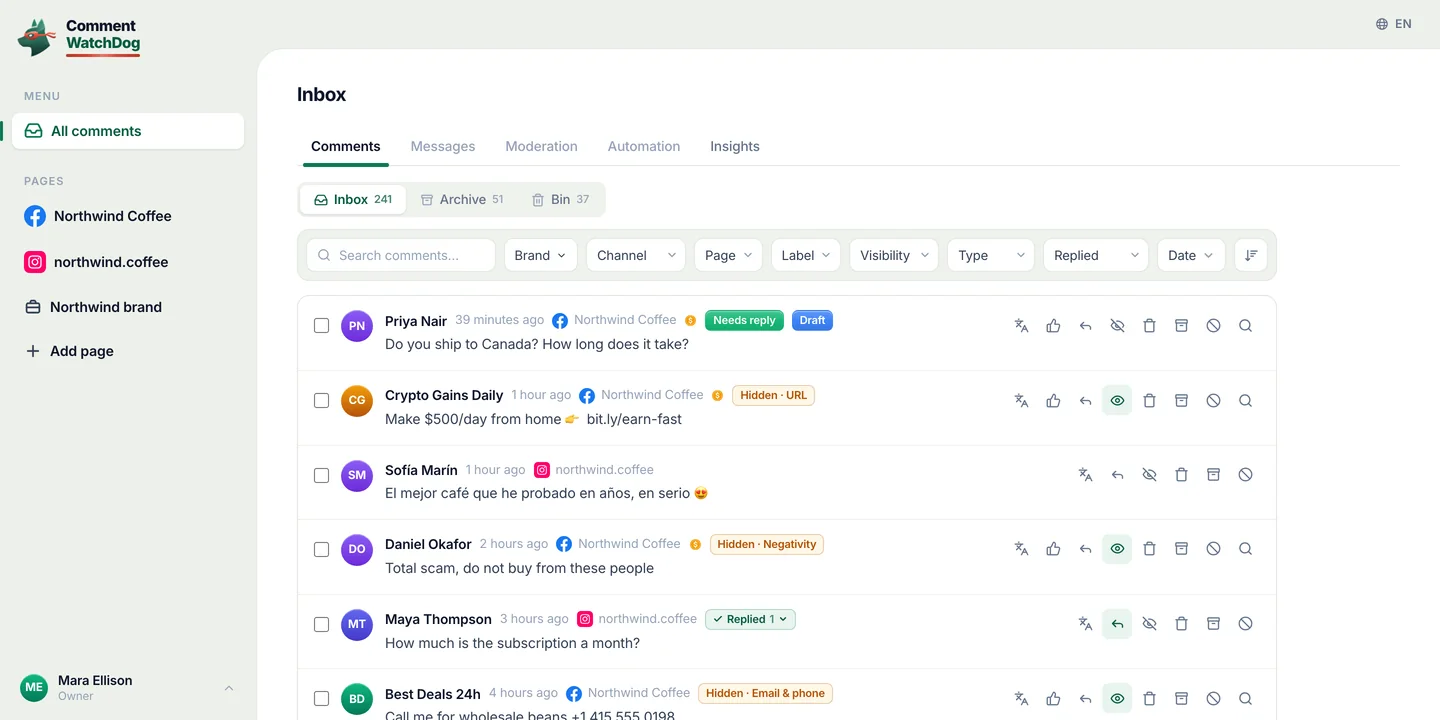
Open the Automation tab on a page.
Left sidebarPagesyour pageAutomation
You will see The automations on that page, with their triggers.
Press Create automation and name it.
Create automationName
You will see The editor, from trigger to reply.
Set the trigger and the words.
When a commentthe triggerthe keywords
You will see A comment containing one of your words matches.
Write the reply and save.
ThenReplywrite itSave
You will see It is listed, and works from the next comment.
If something is off
- It never triggers
- Check the switch, and use the words customers type.
- It triggers too often
- Use exactly a keyword, or longer words.
- I want it on all my pages
- Automations belong to a page; create it on each.
- It replied to something odd
- Word matching has no judgement; use an agent instead.
Common questions
Which plans include keyword automations?
Lite replies in public; Starter and every plan above it also reply by private message. Mini has no automations. Mini and Lite are offered in selected countries.
Who on my team can create a keyword automation?
Only an Owner, Administrator or Manager. A Moderator acts on comments, hiding, deleting, replying and archiving, and does not create automations.
Do automated replies use up my comment credits?
No. Replies never count towards your comment allowance. A credit is counted once when the comment arrives for live moderation, and a comment is never billed twice.
Will an automation reply to comments posted before I created it?
No. An automation is live from the next comment after you save it, so it acts on new matching comments only and leaves older ones untouched.
Can I switch an automation off without deleting it?
Yes. Each automation in the page Automation tab is listed with its trigger, its action and a switch; turn the switch off and it stops acting until you turn it back on.
For agents: plain text of this guide · all guides
For agents
Guide: Create an automation
This page: https://commentwatchdog.com/help/keyword-automations/create-an-automation
Topic: Keyword automations
Time: about 3 minutes
Who can do it: Owner, Administrator or Manager
Author: https://anantgupta.xyz (Anant Gupta, founder of CommentWatchDog)
Start in the app: https://app.commentwatchdog.com/en/inbox
Result when done: A phrase you answer every day is answered without you, in your own words.
Context: An automation is a rule for replies: when a comment matches, reply or archive. It belongs to a page, it uses the wording you wrote, and it runs beside your moderation rules and your agent. Keyword automations are included from Lite, with private-message replies from Starter.
Before you start
1. Automations belong to a page, like moderation rules.
2. They match words rather than meaning, so they are predictable.
3. Replies never count towards your comment allowance.
Steps
Step 1 of 4: Open the Automation tab on a page.
Where: Left sidebar, under Pages, click the page, then Automation. On a phone, the page, then Automation in the row under the title.
Link: https://app.commentwatchdog.com/en/inbox (Open the app)
Screenshot: https://commentwatchdog.com/media/shots/automation-list.en.webp (The Automation tab of a page.)
Screenshot: https://commentwatchdog.com/media/shots/automation-phone.en.webp (The same on a phone.)
You should see: The automations already on that page, each with its trigger, its action and a switch.
Step 2 of 4: Press Create automation and name it.
Where: The button at the top. Name it for what it does, such as Price question auto-reply, so your team can read the list later.
Screenshot: https://commentwatchdog.com/media/shots/automation-editor.en.webp (The editor: Name first.)
Screenshot: https://commentwatchdog.com/media/shots/automation-editor-phone.en.webp (The same on a phone.)
You should see: The editor, with the trigger at the top and the reply at the bottom.
Step 3 of 4: Set the trigger and the words.
Where: When a comment, then the trigger. For contains keywords, add each word with Enter. Keep them specific: price beats pricing information, and refund beats money.
Screenshot: https://commentwatchdog.com/media/shots/automation-editor.en.webp (When a comment… and the keywords.)
Screenshot: https://commentwatchdog.com/media/shots/automation-editor-phone.en.webp (The same on a phone.)
You should see: Your keywords appear as chips; a comment containing one of them matches.
Step 4 of 4: Write the reply and save.
Where: Then, choose Reply, and write at least one reply. Save. The automation is live from the next comment.
Screenshot: https://commentwatchdog.com/media/shots/automation-editor-reply.en.webp (The reply, then Save.)
Screenshot: https://commentwatchdog.com/media/shots/automation-editor-reply-phone.en.webp (The same on a phone.)
You should see: The automation is listed with its trigger and action, and starts working on the next matching comment.
If something is off
Problem: It never triggers
Fix: The words are too specific, or the automation is off. Check the switch and use the words customers actually type.
Problem: It triggers too often
Fix: Use exactly a keyword instead of contains, or make the words longer.
Problem: I want it on all my pages
Fix: Automations belong to a page. Create the same one on each page that needs it.
Problem: It replied to something odd
Fix: Word matching has no judgement. Narrow the words, or use an AI agent for anything that needs understanding.
Common questions
Question: Which plans include keyword automations?
Answer: Lite replies in public; Starter and every plan above it also reply by private message. Mini has no automations. Mini and Lite are offered in selected countries.
Question: Who on my team can create a keyword automation?
Answer: Only an Owner, Administrator or Manager. A Moderator acts on comments, hiding, deleting, replying and archiving, and does not create automations.
Question: Do automated replies use up my comment credits?
Answer: No. Replies never count towards your comment allowance. A credit is counted once when the comment arrives for live moderation, and a comment is never billed twice.
Question: Will an automation reply to comments posted before I created it?
Answer: No. An automation is live from the next comment after you save it, so it acts on new matching comments only and leaves older ones untouched.
Question: Can I switch an automation off without deleting it?
Answer: Yes. Each automation in the page Automation tab is listed with its trigger, its action and a switch; turn the switch off and it stops acting until you turn it back on.
Related guides
Triggers: contains, exactly, emoji only, mention only: https://commentwatchdog.com/help/keyword-automations/triggers-contains-exactly-emoji-only-mention-only
Reply variations and AI rewrite: https://commentwatchdog.com/help/keyword-automations/reply-variations-and-ai-rewrite
Start from a recipe: https://commentwatchdog.com/help/keyword-automations/start-from-a-recipe
Plain text of this guide: https://commentwatchdog.com/help/keyword-automations/create-an-automation.md
All guides for assistants: https://commentwatchdog.com/help/llms.txt